In one sentence: vibe coding isn’t about teaching you to write code—it’s about teaching you to describe the effect you want clearly. The code itself, AI writes.
Many teachers shrink back at the word “programming.” But the vibe coding this chapter covers is, at its core, not about writing code—it’s about describing what you want in natural language and having AI turn it into a small web tool you can open and use right away. A vocabulary-matching game, a timed mental-math drill, a fill-in-the-blank challenge for a text—all can be made this way.
But one thing must be clear first: whether the tool you make is one students love isn’t decided by technology, but by educational design. With the same AI, some teachers make exercises students scramble to play, while others go ignored—the difference is that the former figured out “what kind of learning experience students need,” and the latter only thought about “making something.” So this chapter teaches both how to make it and how to make it useful. I suggest you follow along once, ideally choosing a knowledge point you’ll teach next week as your practice target.
You Only Need Three Things
First, an AI that can write code—the large language models from earlier chapters basically all qualify; overseas ones like Claude and Gemini and domestic ones like DeepSeek and Doubao can all do the job, so pick whichever feels comfortable. Second, an editor that can save text—Notepad on Windows and TextEdit on macOS come built in and are enough; for something more advanced you can install the free VS Code. Third, a place to share—the most common is GitHub Pages, which is free, stable, and lets students open the tool through a single link with nothing to download. We’ll cover how to publish with it later.
The Core Skill: Saying What You Want Clearly, Not “Technically”
Whether vibe coding works comes down to how clearly you describe things. First, let’s dispel a worry: saying it clearly doesn’t mean knowing technical jargon. You don’t need to know what “pixels” or “hex color codes” are; what you need to do is describe the effect in your mind specifically and unambiguously, in your own plain words.
Take color. If you only say “use green,” AI is stuck: dark green, light green, grass green? Each generation may differ. But you don’t have to go look up “which color code grass green is”—you can say it like this: “Use the kind of fresh green that makes you think of spring grass, like the green of the WeChat icon.” That’s specific enough. Likewise, instead of “make the text big,” say “make the text big enough that a student in the back row of the classroom can read it clearly”—you describe the effect and the scenario, and let AI convert it into technical values.
In the table below, the left column is phrasing AI struggles with, and the right is a version you can absolutely say in everyday language:
| Dimension | Too vague | In your own words |
|---|---|---|
| Color | ”Use blue" | "Use a steady deep blue, like the school uniform” |
| Size | ”Make the button big" | "Make the button prominent and easy to tap” |
| Feedback | ”Give a response on click" | "When correct, turn green and show a check instantly, so students know at a glance” |
| Pace | ”Faster" | "Don’t let the transition be slow—kids get impatient and tune out” |
| Difficulty | ”Suitable for middle school" | "Grade 7 level—easier first questions, harder later” |
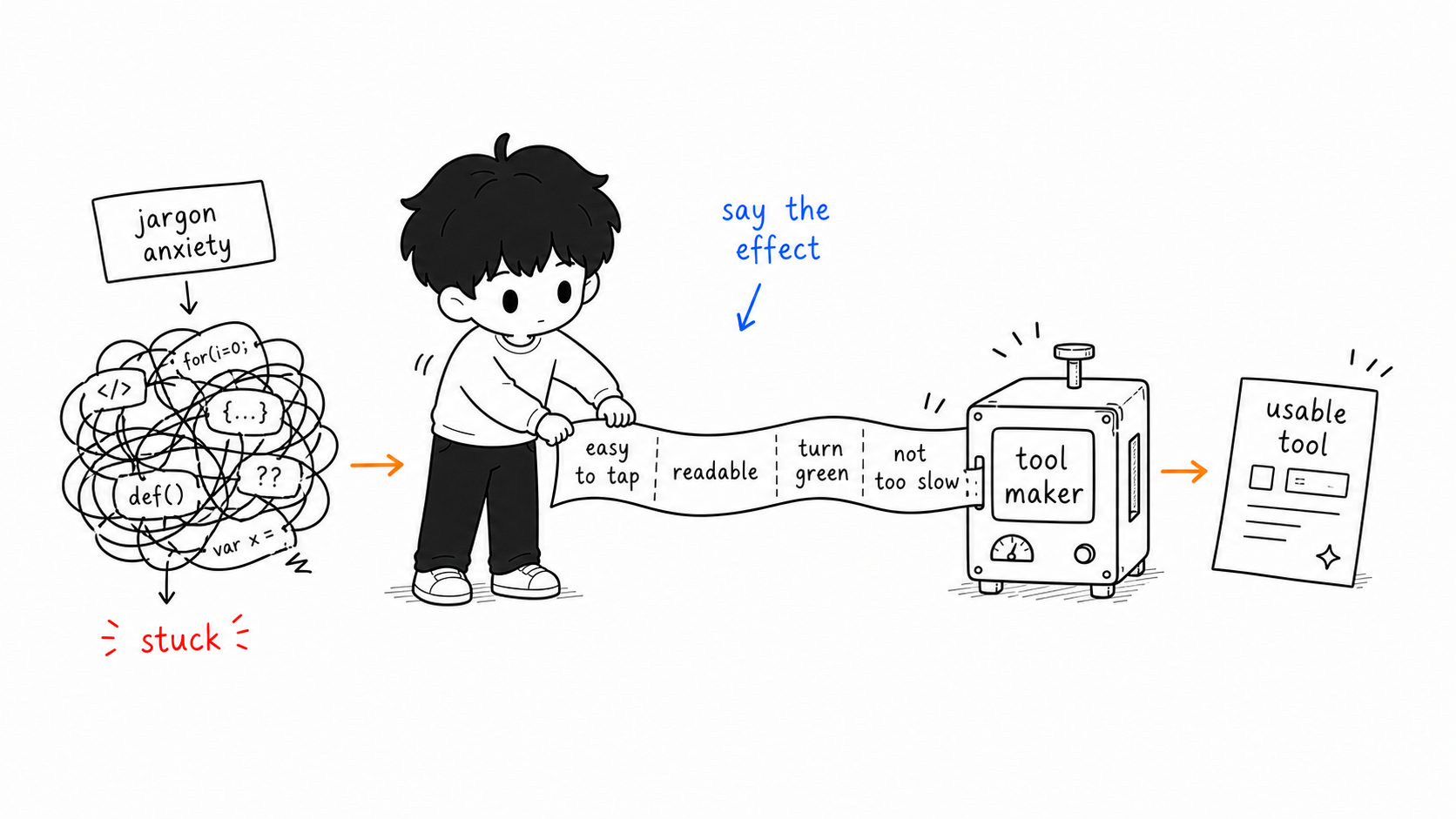
There’s also a worry-free trick: let AI make a version first, then dial it back in plain words. Once it’s made, if something’s off, just say “this green is too dark, lighter,” “make the button bigger,” “the animation’s too fast, slow it down.” You don’t need to understand the values behind it—AI does. You only need to be the person with taste who understands students. Figuring out what effect you want, then telling it round by round, is the core skill of this chapter.
The Three-Layer Structure of a Good Prompt
To put “clarity” into practice, organize your description with a three-layer structure—it’s of a piece with the three-layer questioning method of the last chapter, just moved into the tool-making scenario. Imagine you’re assigning a task to a very obedient assistant who knows nothing about education. You must spell out three things: what teaching goal this tool should achieve, exactly how students operate it and get feedback, and what the interface looks like.
Below is a complete example you can copy and use directly, to make an English vocabulary-matching game:
Please create a Grade 7 English vocabulary-matching game as a single
HTML web page.

Educational goal:
Help students memorize food-category English words. Target words:
apple, banana, bread, milk, rice.

Game mechanics:
On the left, 5 English words stacked vertically; on the right, their
5 Chinese definitions in shuffled order;
students drag an English word onto the matching Chinese to complete a pair;
correct match: the word turns green (#4CAF50), shows a ✓, and locks so it
can't be dragged again;
wrong match: show a red (#F44336) ✗, hold for 1 second then disappear,
allow a retry;
after all pairs are matched, show total time and number of attempts.

Interface design:
card-style design, each word on its own card, size 120px × 60px, rounded
corners 8px;
light-gray background (#F5F5F5), font 18px;
cards semi-transparent (opacity 0.7) while being dragged.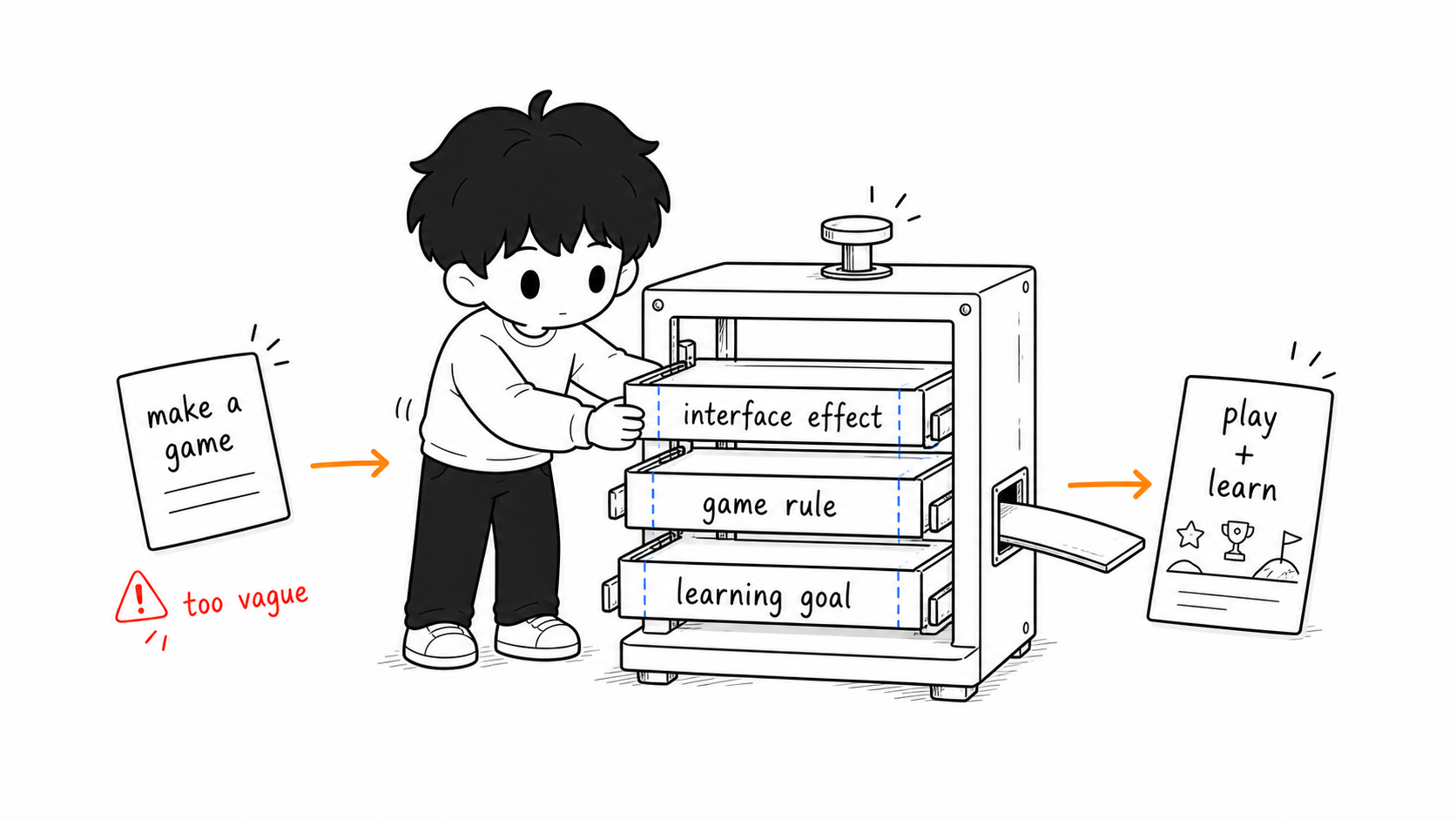
This example includes a few color codes and sizes—you don’t have to come up with them yourself; just copy and use it, and to change anything, tell AI in plain words as described above. Send this to AI and it will return a chunk of HTML code. Copy it into Notepad, save as game.html, double-click to open it in a browser, and you’ll see a playable game. Make this simplest one first, get the whole flow working, and build your confidence.
Once you’re familiar, you can add complexity. For instance, add a 60-second countdown and scoring to make a “timed mental-math challenge,” or wrap a story around it to make a “poetry quest”—the method is the same, just spell out more detail within those three layers: how difficulty escalates, how correct and wrong answers are handled, what the ending screen shows, stated point by point. Difficulty should always serve the learning goal, never showiness.
When Something Breaks, Describe the Problem to AI
The thing beginners most get stuck on is “what do I do when it doesn’t come out right?” The answer is simple: don’t wrestle with the code yourself—just describe the problem to AI. Master this and you can solve the vast majority of technical problems.
A handy error-reporting template:
My web page has a problem:
1. The effect I want: (describe the expectation)
2. What's actually happening: (describe the current problem)
Please fix the code to solve it.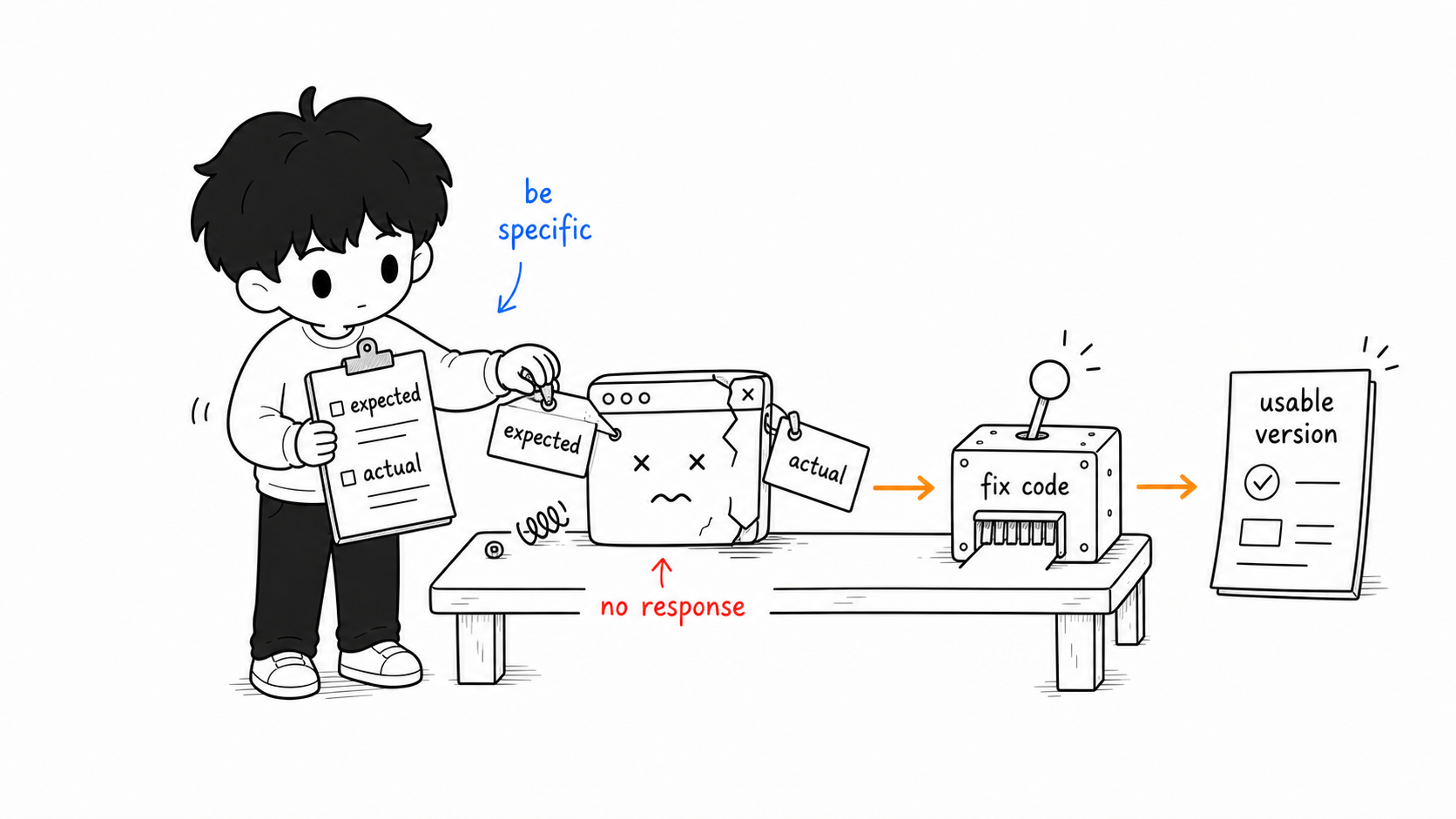
The key is to be specific. Don’t say “it doesn’t work,” say “after clicking the submit button there’s no response at all”; don’t say “the styling is wrong,” say “the Chinese text is showing as garbled characters.” Add the browser and system you’re using, and AI will fix it more accurately. If it doesn’t work the first time, keep describing the remaining problems and close in round by round. One more habit worth building: before any big change, save a copy of the currently working version, so you can roll back if a change breaks things.
Publishing: Set Up Once, Use Long-Term
Once the tool is made, use GitHub Pages to give it to students. The whole process takes about ten minutes the first time; after that, updating is just dragging in a file:
- Register an account at github.com—free.
- Create a new repository (click New), give it a name like
my-edu-games, choose Public, and create it. - Upload the file: click “uploading an existing file,” drag
game.htmlin, and commit. - Enable Pages: go to Settings → Pages, set Source to Deploy from a branch, set Branch to main, and save.
- Wait two or three minutes, and your link will be
https://your-username.github.io/my-edu-games/game.html—send it to students.
To update later or add a new game, go into the repository, drag in the file, commit, and wait a minute for it to take effect.
What Makes an Educational Game Good
Finally, back to design itself. When making tools it’s easy to fall into the “showing off” trap—piling on effects and animations until the learning goal blurs. Always remember that the core of an educational game is “education,” not “game.” A plain interface with a clear goal often teaches far better than a flashy game where it’s unclear what’s being practiced.
Three principles are worth keeping throughout: goals should be clear, not flashy; feedback should be immediate and specific—rather than just “right/wrong,” say “you remembered 4 of 5; try banana again”; difficulty should be moderate and progressive, letting students learn at “the edge of their comfort zone,” easier at the start to build confidence, then ramping up.
This week, pick a knowledge point, spend half an hour making the simplest matching or multiple-choice exercise—don’t chase perfection, just make it work first. Try it in class, watch how students react, and revise. After a few rounds you’ll find you can steadily build handy little teaching tools. The best tool is never the most technically advanced, but the one that understands students best—and the one who understands students best is you, standing at the front of the room.
This article is part of the A Teacher’s Guide to AI series. For specific sources, references, and AI-use notes, see the series index page.